Paggles
I don’t know when inspiration will strike. This time, I was stoned and scrolling Instagram when I came across a screenshot of this Reddit post:
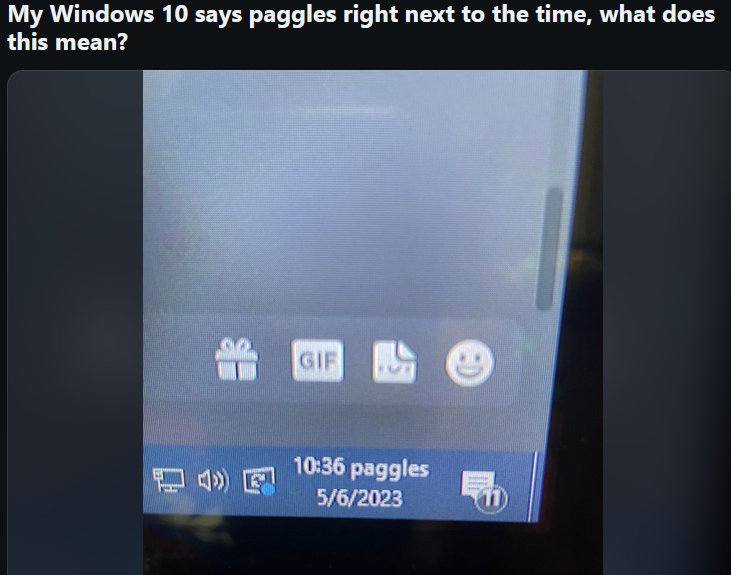
I don’t know why I found this so funny, but my first thought was “how does someone even do this?”. The first comment had the answer:

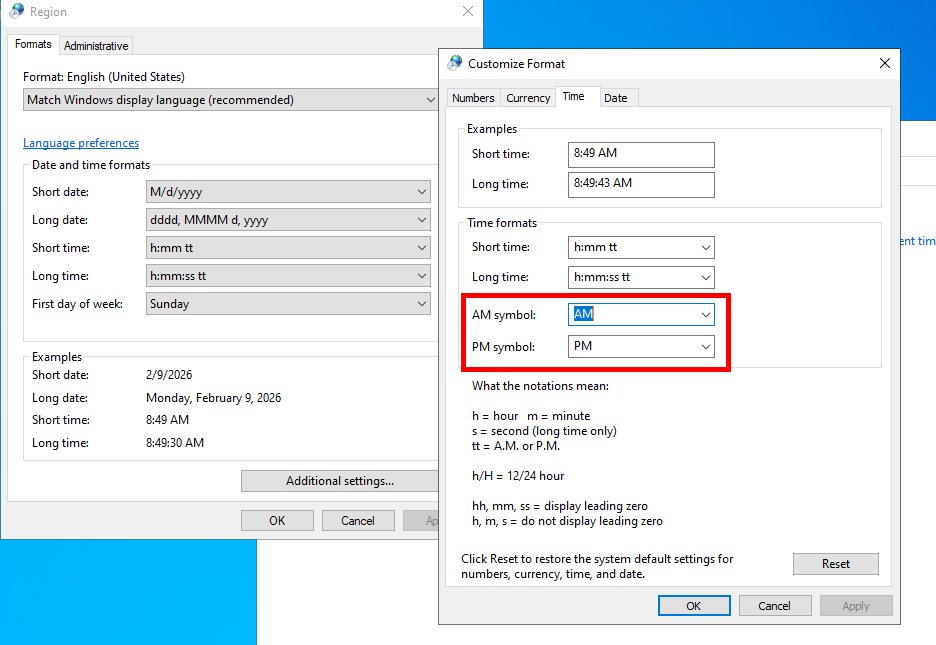
Sure enough, there it is. I didn’t realize the AM/PM field were mutable string values, so I figured there had to be a way to edit these with PowerShell. My journey into storing movies in the Windows Event Log taught me that if data can be written, I can store a movie in that field.
So became my weekend project: Storing my movie collection in the AM/PM field of the Windows Clock.
What Time Is It?
I wish I had some novel explanation for editing these values with
PowerShell, but as it turns out Microsoft just stores these as REG_SZ
(string) registry keys:
HKEY_CURRENT_USER\Control Panel\International\s1159(AM)HKEY_CURRENT_USER\Control Panel\International\s2359(PM)
Since both of these keys are in the HKEY_CURRENT_USER\Control Panel
they are readable and writable by unprivileged users. This makes
sense since it’s a setting related to per-user session settings, but
this also creates a juicy place to store executable code, binaries, or
in my case, MP4 files.
To demonstrate just how easy this is - this single command updates the
AM field to calc.exe.
Set-ItemProperty -Path "HKCU:\Control Panel\International" -Name "s1159" -Value calc.exe
That’s it. That’s the exploit.
This takes a few seconds to appear across the system and in the task
bar. This affects the date formatting system-wide, including Get-Date
and timestamps in log files. Most of the system relies on
(Get-Culture).DateTimeFormat for determining the output format.
If an immediate update is desired, broadcasting WM_SETTINGCHANGE will
force an update of running applications.
Regardless, once the task bar has updated Get-Date will return the
code stored in the AM field.
PS C:\Users\Adam> (Get-Culture).DateTimeFormat


AMDesignator                     : calc.exe <-------- AM Designator has been updated
Calendar                         : System.Globalization.GregorianCalendar
DateSeparator                    : /
FirstDayOfWeek                   : Sunday
CalendarWeekRule                 : FirstDay
FullDateTimePattern              : dddd, MMMM d, yyyy h:mm:ss tt
LongDatePattern                  : dddd, MMMM d, yyyy
LongTimePattern                  : h:mm:ss tt
MonthDayPattern                  : MMMM d
PMDesignator                     : PM
(Trimmed for brevity...)

PS C:\Users\Adam> Get-Date -F tt
calc.exe
PS C:\Users\Adam> Get-Date -F tt | iex
PS C:\Users\Adam>
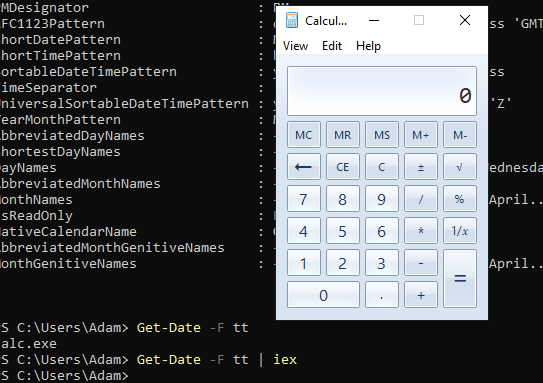
A static image doesn’t capture this well, but piping the final command
to iex executes calc.exe.
What Am I Doing In This Swamp?
The process of storing the MP4 file was pretty straightforward. Using
the same logic as above, the only difference was needing to switch the
registry key type from REG_SZ to REG_BINARY before writing data.
Below is a short script that ChatGPT helped me write to store these movies. Since all I was doing was reading the MP4 file contents and writing it to a binary registry key, I felt pretty confident it could handle this without reaffirming how brilliant I am for even asking it a question.
# Path to the binary file we want to write into the registry
$Path = "C:\Path\To\Shrek.mp4"

# Read the entire file as raw bytes
$Binary = [System.IO.File]::ReadAllBytes($Path)

# Registry location for user international (locale) settings
$RegPath = "Control Panel\International"

# Open the registry key for the current user with write access
$Key = [Microsoft.Win32.Registry]::CurrentUser.OpenSubKey($RegPath, $true)

# Write binary data for the AM time format
$Key.SetValue(
    "s1159",                       # AM format registry value
    $Binary,                       # Raw binary data
    [Microsoft.Win32.RegistryValueKind]::Binary
)

Write-Host "AM time format written ($($Binary.Length) bytes)"
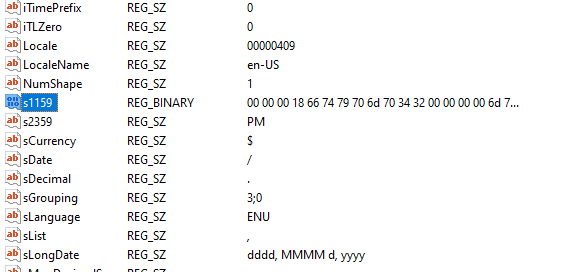
and… it just works. Other than seeing the data in the RegEdit view, there isn’t much to show here.
Curiously, once the Registry Key Type changes to REG_BINARY the system
timestamps goes back to displaying the default AM/PM values, regardless
of what this key is set to.
I assume it’s failing to find the string key, and reverting to default values. This makes for a fun way to hide binaries since, again, this can be done as an unprivileged user.
I did find pretty early on that there is a size limit on single registry
keys, receiving an error that ReadAllBytes was limited to files less
than 2GB in size.
After a little digging, I found that the length is limited to the max length of a 32-bit integer - 2,147,483,591 bytes (thanks for the help, RuneScape.)

Storing more than 2GB would involve creating multiple registry keys and striping the data across them, similar to what I did with the data stored in event logs in my previous blog.
My self-imposed restrictions on this project make it so I can only store my movies within these two AM/PM field registry keys, and thus by definition in the Windows Clock itself. Creating new keys would be out of scope for the existing clock, so I do not consider this a path forward.
Combined this gives me roughly 4GB. This is perfect because Shrek 4 is 1GB in size, but also very disappointing because Season 3 of Game Of Thrones is closer to 20GB, so I need to choose my library carefully.
Exporting the files out of the clock is just as easy, borrowing some old code from the event log project I came up with this:
$Path = C:\Path\To\Export\Shrek.mp4
$binaryFromRegistry = $key.GetValue(
    "s1159",
    $null,
    [Microsoft.Win32.RegistryValueOptions]::DoNotExpandEnvironmentNames
)

if ($null -eq $binaryFromRegistry) {
    throw "Registry value '$valueName' not found under $regPath"
}

$binaryFromRegistry.GetType().FullName
$binaryFromRegistry.Length
[System.IO.File]::WriteAllBytes($Path, $binaryFromRegistry)
All this does is read the length, type, and bytes from the registry key and write it back to a file. EZPZ.
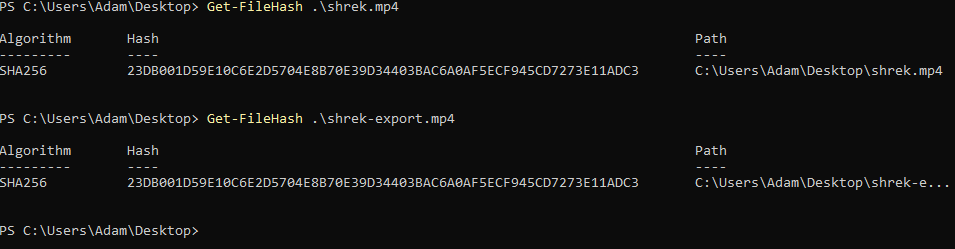
Comparing both the input and output files show no degradation, and the file hash is the same.
And, of course, playback is fine!