The Basics of Event Log Manipulation
My interest in event log manipulation started when Kaspersky had observed “fileless” malware in the wild utilizing the Windows Event Log to hide shellcode, and ever since watching Tim Fowler’s (BHIS) presentation on offensive Windows Event logs, I’ve been obsessed with hiding whatever I can find in there.
In October 2023, I used this technique to create the Texas Chainsaw Massacre: Tokyo Drift challenge for Huntress’s CTF. It was a fairly straightforward use, using Tim Fowler’s PowerShell script I had injected a HexCode PowerShell payload into an unassuming Windows Event Log entry. From the initial view, it just looks like a custom event log entry:
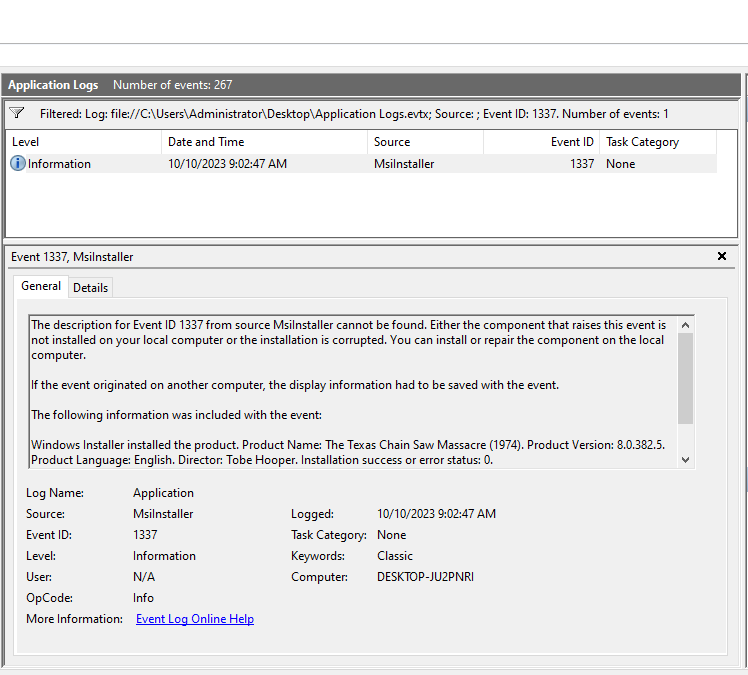
However, digging into the raw bytes would reveal the obfuscated payload:
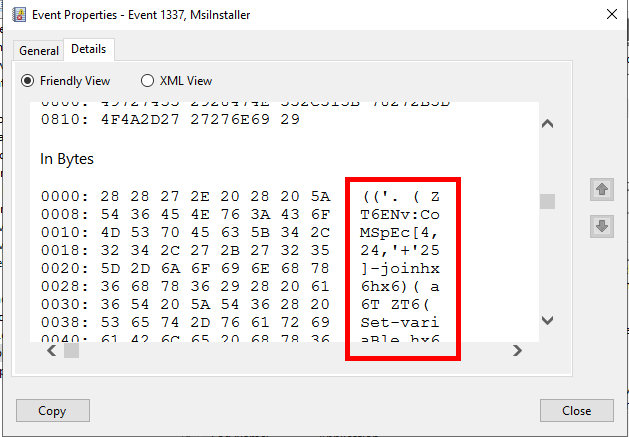
The challenge then involved unraveling a few layers of obfuscated PowerShell and chasing down a DNS lookup to a .zip domain. This was fun to build, but I’ve still had the itch to take the event log manipulation further.
One night, I had a crazy idea: What if I stored my movie collection in a SIEM using Windows Event Logs?
That was all the inspiration I needed. I got to work. With an MP4 of Shrek 4, a pack of edibles, and eight hours on a rainy Sunday, I was an unstoppable force.
There was one problem - Shrek.mp4 is 1GB in size, and I was getting very vague errors when trying to stuff that much data into a single event entry.

At first I thought this was due to the log size restrictions on Windows Event Logs. By default, newly created logs default to a Maximum Log Size of 1MB, while the Windows Event Logs (Application, Security, Etc.) seem to be around 20MB by default. I bumped this up as far as 10GB, which made no difference. While this wasn’t the underlying cause of my error, this was going to be a requirement for storing my movies anyway, so I threw together the following snippet for reuse later. The old way of doing this would require Limit-EventLog, but this only works on classic event logs up to Windows Vista. Later versions use Get-WinEvent.
$targetLog = Get-WinEvent -ListLog $LogName
$targetLog.MaximumSizeInBytes = 10gb
$targetLog.SaveChanges()
The Immovable Object
I spent many hours scratching my head on this, and this information is pretty esoteric and was difficult to find, so I have to give a massive shoutout to Tim Fowler for documenting all of this in the Offensive Windows Event Logs presentation I mentioned at the beginning of this article.
I went back to my notes, and sure enough, there was my answer:
Event logs have a hard-coded string limit of 32K characters, or 32kb in terms of raw binary data:
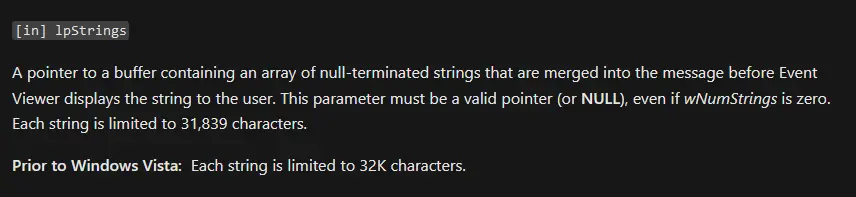
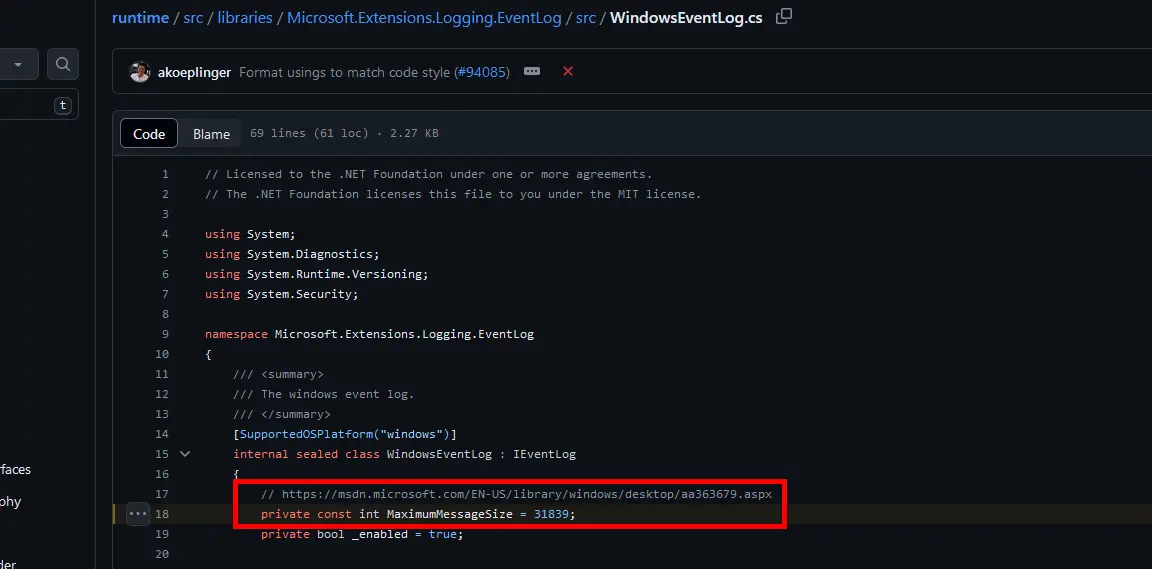
Well, that sucks. I guess I’ll just have to split Shrek across multiple 32kb events.
Splitting The File
Splitting files is nothing new, archive tools like WinRAR and 7Zip offer features that do this, but it’s actually very easy to do this natively with Powershell.
while($moreData=$true)
	{
		$bytesRead = $reader.Read($buffer, 0, $buffer.Length)
		[Byte[]] $output = $buffer
		if ($bytesRead -ne $buffer.Length)
		{
			$moreData = $false
			$output = New-Object -TypeName Byte[] -ArgumentList $bytesRead
			[Array]::Copy($buffer, $output, $bytesRead)
		}
		Write-EventLog -LogName $LogName -Source $LogSource -EventId $EventCode -EntryType Information -Category 0 -Message $EventMessage -RawData $output
	}
$reader.Close()
In this case, $reader is the .NET method for File.OpenRead, which is reading the source file. This loop will continuously read chunks of the file in $buffer.Length (32KB) sizes until the file has been completely split into those chunks.
Once the chunk is saved to the $output array, it’s written to the -RawData block of an event entry. This process continues until all chunks of the file have been written to an event.
Reassembling the files
This part is only nine lines of PowerShell, but took me by far the most amount of time to figure out.
$files = Get-EventLog -LogName $LogName -Source $LogSource -Instanceid $InstanceID
$writer = [IO.File]::OpenWrite($Path)
$files |
	ForEach-Object{
		$bytes = ($_.Data)
		$writer.Write($bytes, 0, $bytes.Length)
	}
$writer.Close()
The logic is very simple: each event is queried against the original event criteria (Source, Event ID, etc.) and the files are reassembled using the Data field of each event, which is the 32kb of binary that was stuffed in there.
Here lies the second problem: Get-EventLog was sorting the events in descending order (newest-oldest), not in ascending order (oldest-newest), so when the data was read the files were being reassembled in reverse order, leading to a corrupted output file.
This is how the results looked after storing the movie and running the Get-EventLog command manually. Notice the Index column sorted in descending order.
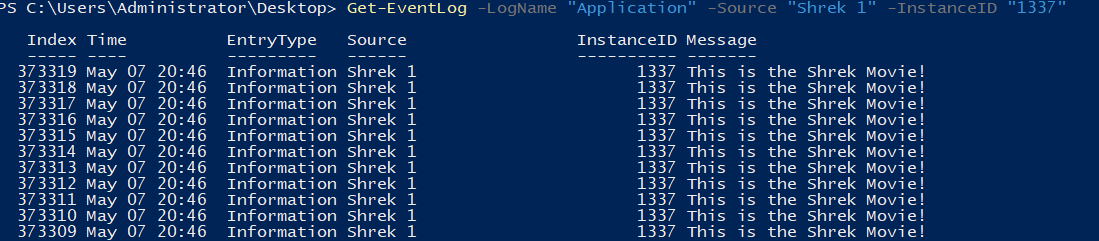
This is a silly problem and oversight on my part. Of course Windows wants to read the events in descending order by default, who would possibly use the event logs in any other way?
Sorting them is easy enough with Sort-Object. However, the timestamps are so close together that it would be inefficient to sort the events that way. This version of the command outputs the events sorted by Index order, which is the order needed for reassembly.
Get-EventLog -LogName $LogName -Source $LogSource -Instanceid $InstanceID | Sort-Object -Property @{Expression = "Index"; Ascending = $true}
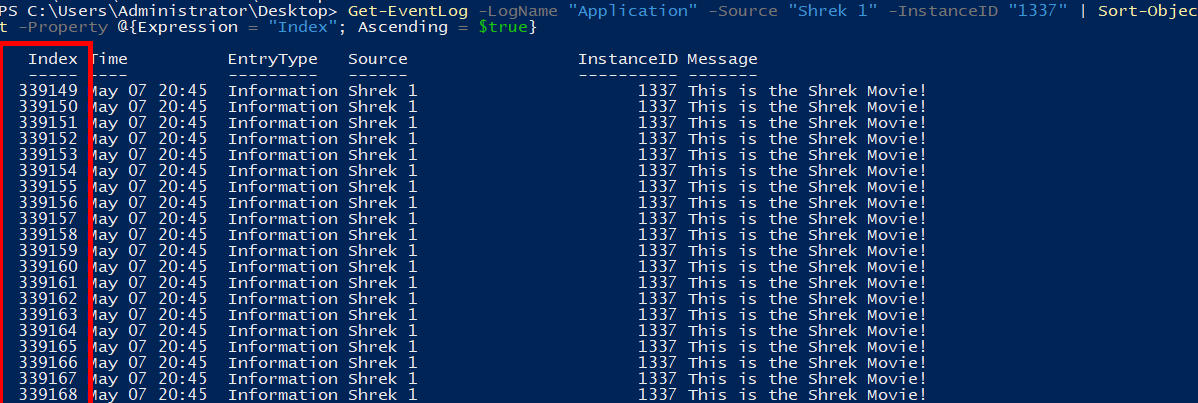
The malware Kaspersky uncovered using this technique incremented Event IDs for the events containing shellcode, and I like to believe this was to overcome the same issue I’m seeing here. But I’m not writing malware, I just want to store my movies in the event log.
Cleaning up the reassembly code looks like this:
$files = Get-EventLog -LogName $LogName -Source $LogSource -Instanceid $InstanceID | Sort-Object -Property @{Expression = "Index"; Ascending = $true}

$writer = [IO.File]::OpenWrite($Path)
files |
	ForEach-Object{
		$bytes = ($_.Data)
		$writer.Write($bytes, 0, $bytes.Length)
		}
$writer.Close()
Storing And Retrieving The Movies
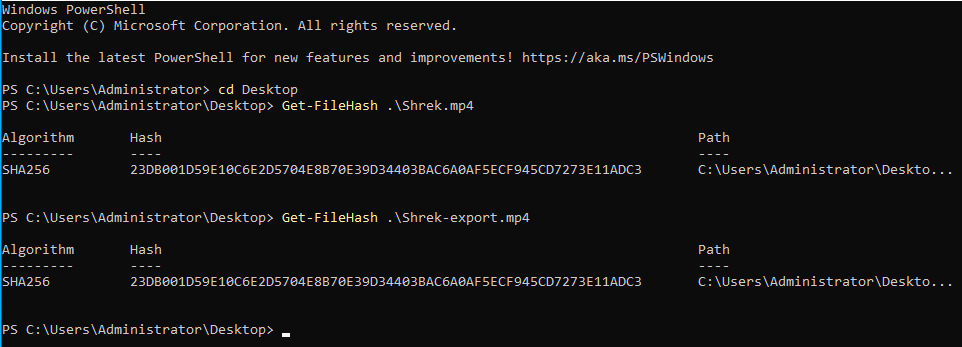
Time to put it all together. To check for data loss after extraction, I collected the file hash of the original movie file.

I threw this all into a PowerShell module so I could easily call each of these tasks from a cmdlet binding. Storing the movie in a newly created event log (Shrek) took about 5 minutes.
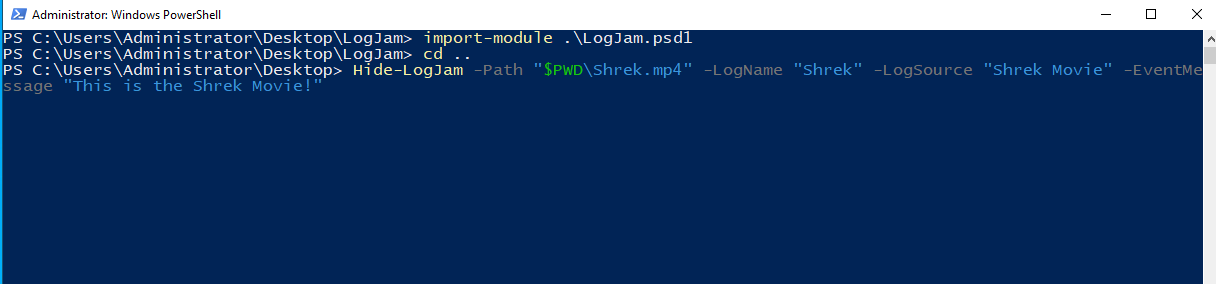
Once written to the log, Shrek.mp4 was striped across 34,171 event entries and 1.04GB in size. This is interesting because the original file is 0.97GB in size, meaning this provides absolutely no compression at all. It makes sense, given that each event entry has a small amount of metadata to store alongside the binary.
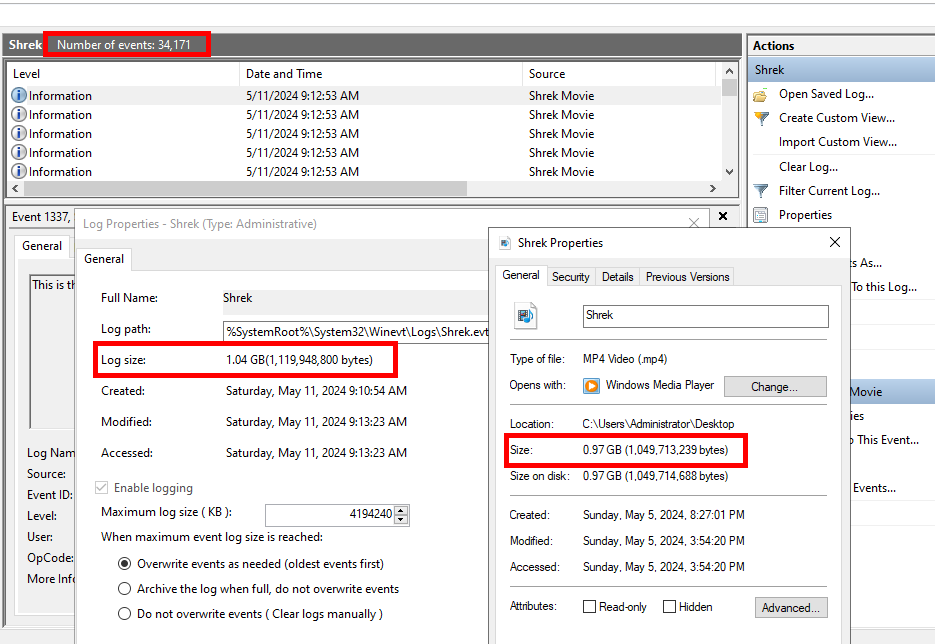
Reassembling the file using a function that calls the reassembly code from above. This took less than a minute.

Checking the file hash of the export file, it is exactly the same as the original, meaning there is no noticeable data loss.
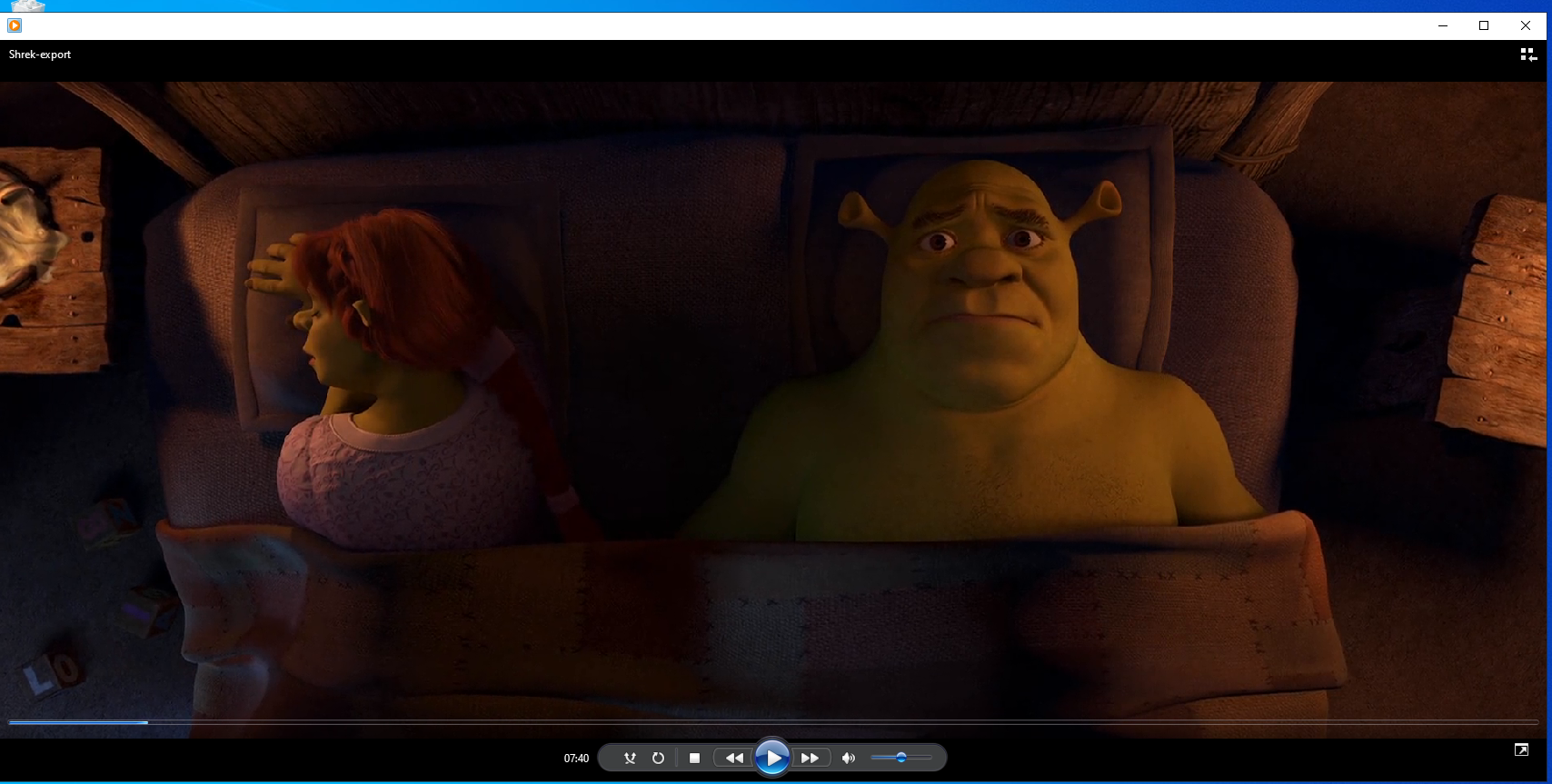
And it plays perfectly fine. (Humor me, I realize a static screenshot of a movie doesn’t illustrate this.)